Switchers
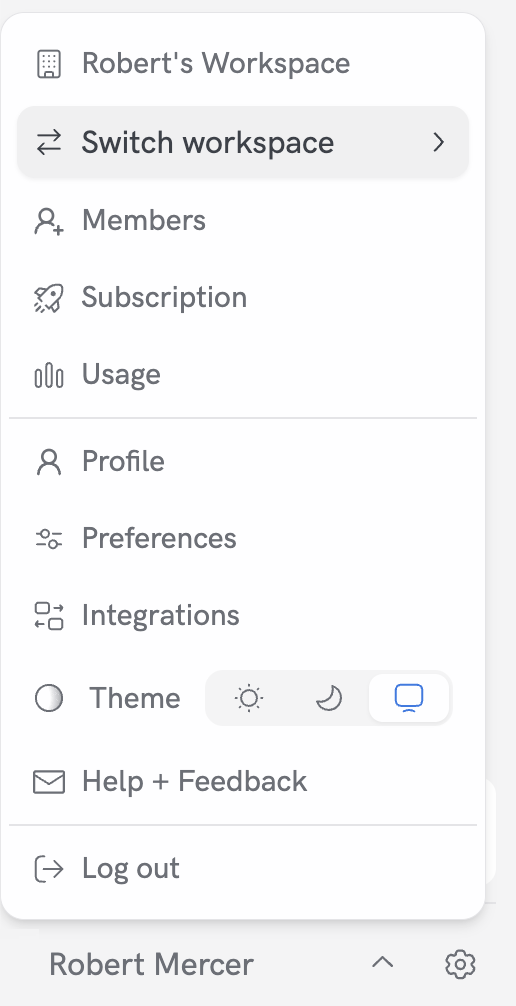
You can switch between workspaces in two places:- Profile dropdown → “Switch workspace”
- Settings → left sidebar → Workspace section → “Switch workspace”
Shared subscription
- Your workspace subscription is shared across its members
- Usage limits (e.g., number of videos and quota) are pooled and shared among all workspace members
Shared assets
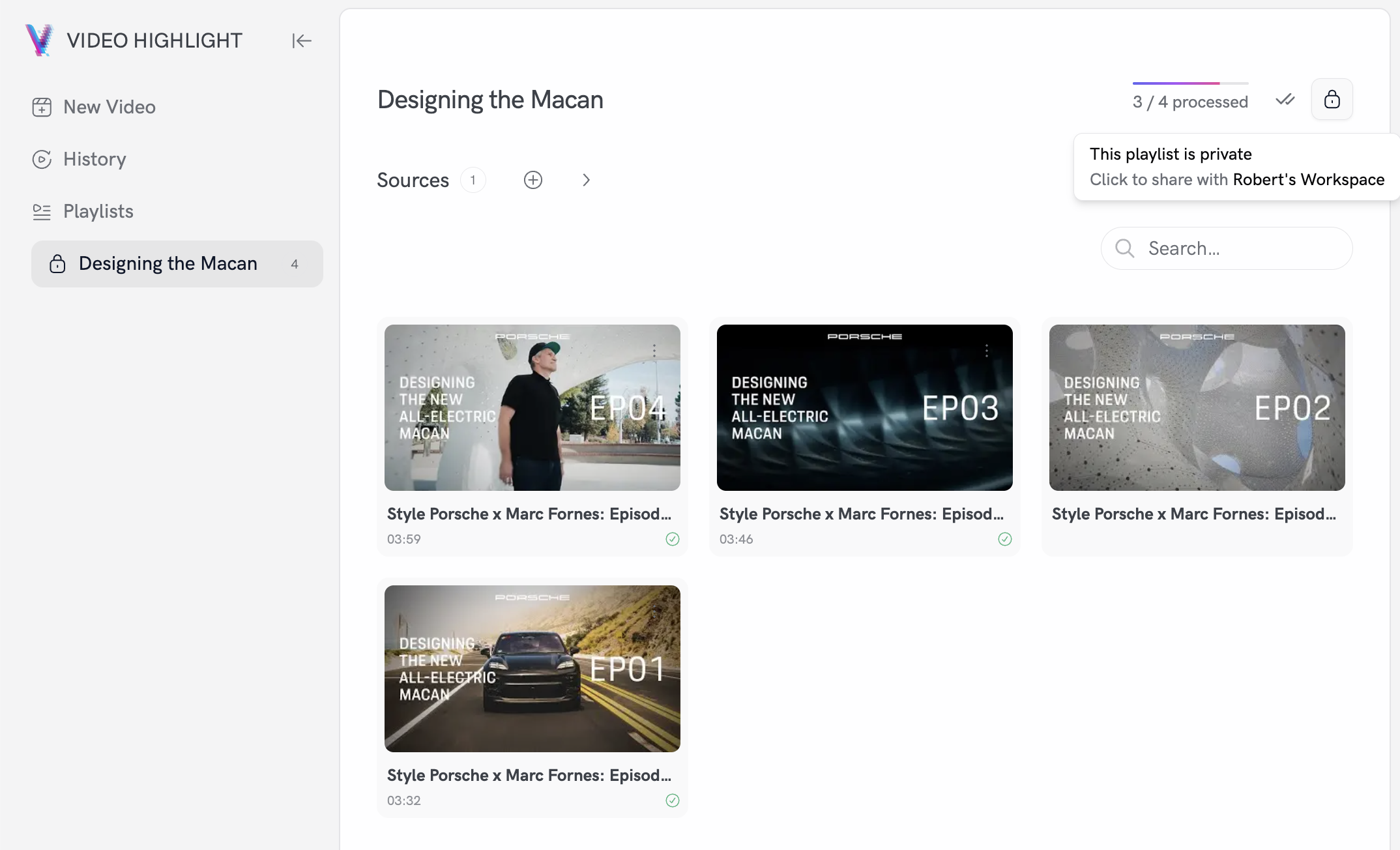
To make videos visible to teammates, share them via a playlist:- Create a playlist
- Add the videos to the playlist
- Set the playlist visibility to Workspace (shared) using the lock icon in the playlist header (top-right). You can toggle it back to Private anytime.
- Transcripts: visible to workspace members
- Highlights: visible to workspace members
- Playlists: can be private, public, or shared with the workspace