> ## Documentation Index
> Fetch the complete documentation index at: https://docs.videohighlight.com/llms.txt
> Use this file to discover all available pages before exploring further.
# Invite members
> Invite teammates to your workspace via email or invite link.
# Invite members and Roles
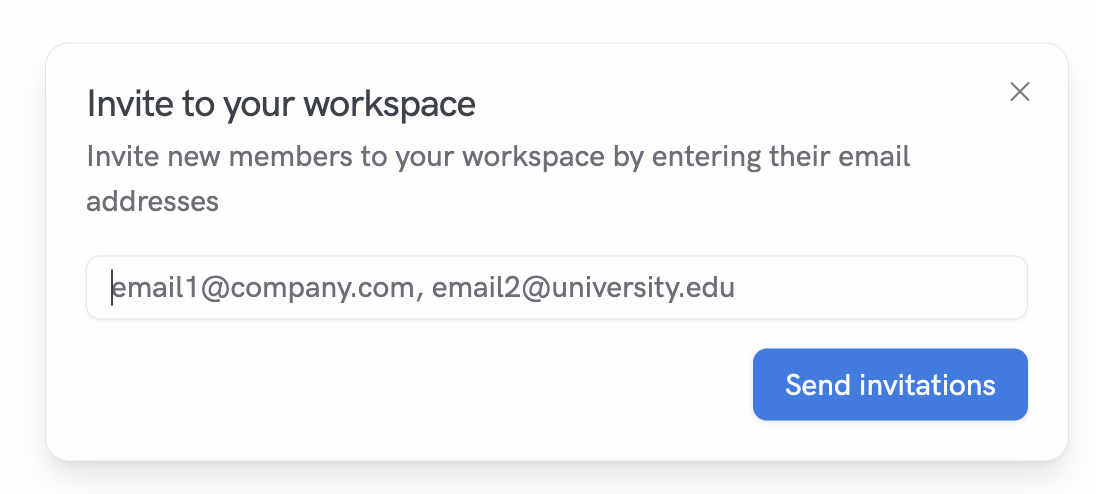
## Send invitations by email
1. Go to Settings → Members
2. Click “Invite Members”
3. Enter one or more email addresses (comma-separated)
4. Send invitations
 ## Use an invitation link
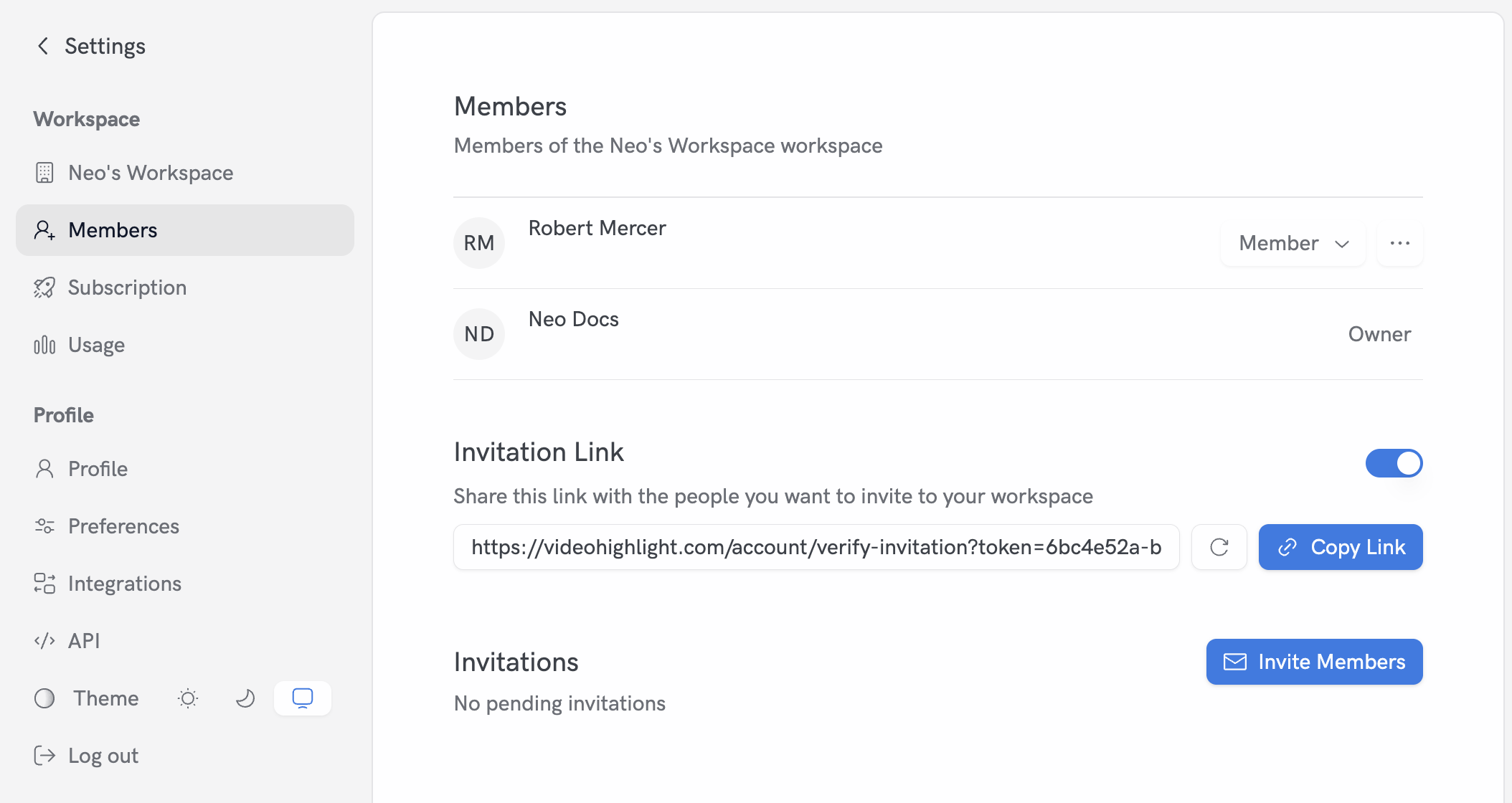
From Settings → Members you can manage a workspace-level invitation link.
* Enable or pause the link
* Copy the link to share
* Refresh the token if needed
## Use an invitation link
From Settings → Members you can manage a workspace-level invitation link.
* Enable or pause the link
* Copy the link to share
* Refresh the token if needed
 ## Manage Members
From Settings → Members:
* Change a member’s role (Admin, Member)
* Suspend or reactivate a member
## Current Roles
* **Admin**: manage members and routine workspace operations
* **Member**: collaborate within the workspace
## Manage Members
From Settings → Members:
* Change a member’s role (Admin, Member)
* Suspend or reactivate a member
## Current Roles
* **Admin**: manage members and routine workspace operations
* **Member**: collaborate within the workspace